

Publishing starts on Restart Pro. A Free workspace can be built and previewed in full; the Publish button opens the upgrade dialog, and the site goes live the moment you upgrade. See Plans.
Before you start
- A completed build. The Builder must have finished at least one milestone.
- Enough credits to cover the publish fee. See How credits work.
Publish for the first time
1
Select Publish
Select Publish at the top of the workspace. Its tooltip reads Publishes your last completed milestone.
2
Name your site
A dialog opens titled Name your site. Type into the field; your address is that name plus
.restart.new.The hint under the field checks availability as you type:3
Review and approve
A dialog titled Review before publishing shows exactly what you are agreeing to: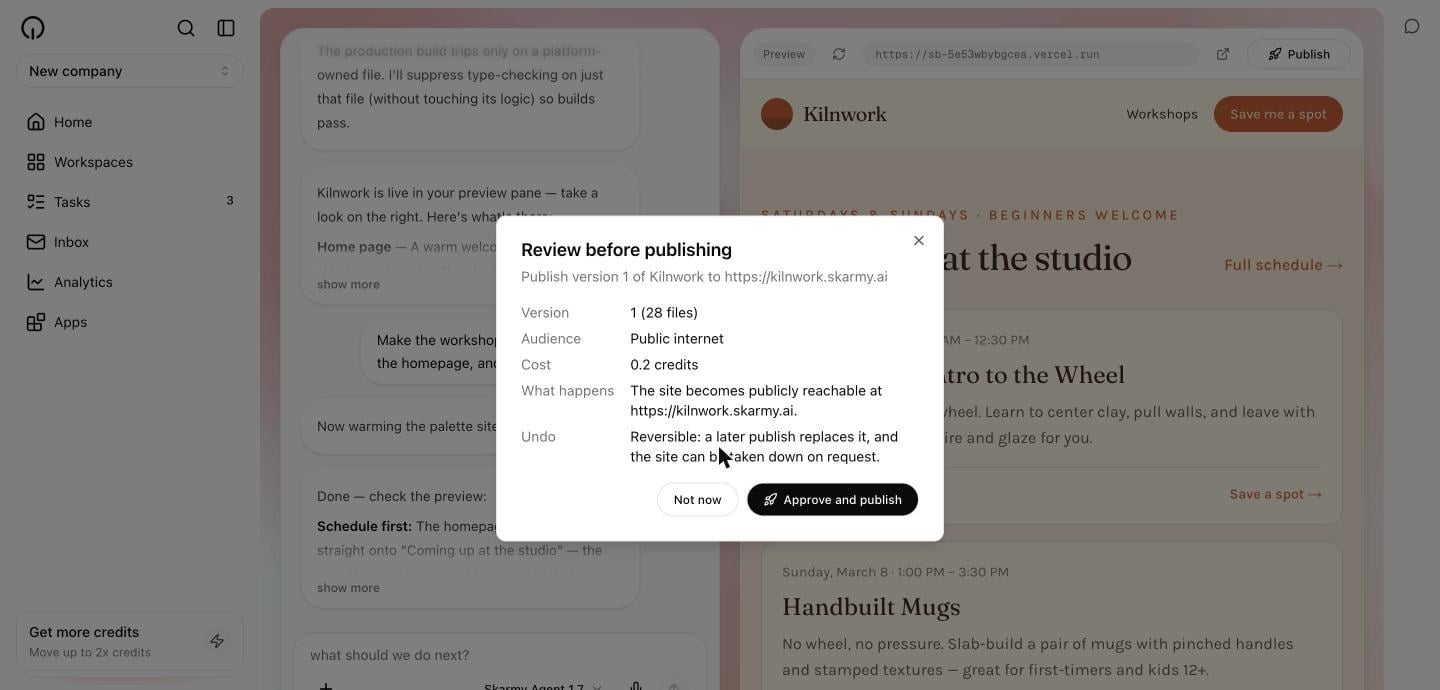
4
Wait for it to go live
Deployment takes a few minutes. You can keep working, and you can reload the page — the deployment carries on either way. Restart does not announce the address until the site actually serves.Expected result: a Live at yourname.restart.new link appears next to the Publish button.
5
Open your site
Select the link. It opens in a new tab.Expected result: your site loads at its public address.
You can rename the address later, or connect a domain you already own, through Manage domain on Home. Renaming retires the old name for good, so links you shared stop working. See Site addresses.
What gets published
Publishing deploys the last completed milestone, not whatever the Builder is doing right now. If it is mid-change, publishing ships the last finished state. Your published site is a snapshot. It does not update when your preview updates. To refresh it, see Update a published site.Ask the Builder to publish
You can also just say so:The Builder only publishes work that passed its own checks. If a publish fails, it tells you rather than reporting success.
Verify
- A Live at … link appears beside the Publish button.
- Opening it in a private or incognito window loads your site — proving it is genuinely public.
- The site matches your last completed milestone.
Troubleshooting
Next
Site addresses
Naming rules and reserved names.
Update a published site
Ship your latest changes.